30 Dollars, 30 Minutes, 1 Nice Fileserver
When I’m working, I like to listen to music (which I stream over the local network). I also often download ISO images of Ubuntu CD’s, Ultimate Boot CD, etc. The problem comes when I have to power down my main computer. If I have an ISO downloading from Ubuntu or somewhere else, I cannot power down. Needless to say, that was an annoyance as I did not want to leave my main computer on when I was not using it. Not anymore!
I picked up a small used PC that would make a great mini-fileserver with a small footprint; so it can be hidden away. The best part is I got it for only $30 (CAN) - An old IBM Aptiva. The added benefit that this smaller unit uses less energy than my main computer is also a nice bonus (and I don’t need to leave a monitor connected to it either).
Here’s a snapshot:
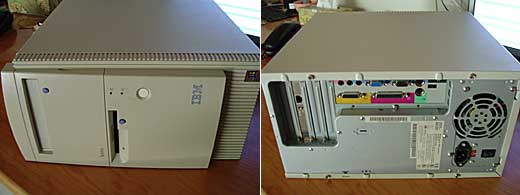
Here’s what came with it:
- AMD 500MHz CPU
- 256MB RAM
- 10GB HDD
- 40x CDROM
- 1.44 FDD
What was my mission?
A file server that could download my ISO’s (including Ubuntu and other free CD’s). A way to remotely manage it (SSH for example). An interface for file transfers, GUI etc. (LAMP for example),
“Simplicity” was the mantra.
Because it’s an older system with less resources, I didn’t want the latest, greatest Ubuntu distribution on it (it’s only a file server!)
Instead, I opted to use the 6.10 version, “Edgy Eft” (which I still had the CD for).
Here’s what else I used…
1) For the downloading (this should be a torrent client):
TorrentFlux - www.torrentflux.com
Because, “…TorrentFlux is a FREE PHP based Torrent client that runs on a web server. Manage all of your Torrent downloads through a convenient web interface from anywhere…”
2) To share files accross the network:
Samba with SWAT - us1.samba.org and www.linuxsoft.cz
Because, “…Samba is an Open Source/Free Software suite that provides seamless file and print services to SMB/CIFS clients. Samba is freely available, unlike other SMB/CIFS implementations, and allows for interoperability between Linux/Unix servers and Windows-based clients…”
and, “…SWAT allows a Samba administrator to configure the complex smb.conf(5) file via a Web browser. In addition, a swat configuration page has help links to all the configurable options in the smb.conf file allowing an administrator to easily look up the effects of any change…”
3) Remote administration (over the network):
openSSH - www.openssh.com
Because, “…OpenSSH is a FREE version of the SSH connectivity tools that technical users of the Internet rely on. Users of telnet, rlogin, and ftp may not realize that their password is transmitted across the Internet unencrypted, but it is. OpenSSH encrypts all traffic (including passwords) to effectively eliminate eavesdropping, connection hijacking, and other attacks. Additionally, OpenSSH provides secure tunneling capabilities and several authentication methods, and supports all SSH protocol versions…”
4) The web GUI capability:
Apache - www.apache.org
Because, “…The Apache HTTP Server Project is a collaborative software development effort aimed at creating a robust, commercial-grade, featureful, and freely-available source code implementation of an HTTP (Web) server. The project is jointly managed by a group of volunteers located around the world, using the Internet and the Web to communicate, plan, and develop the server and its related documentation…”
5) The database (to keep things simple):
MySQL with PHPMyAdmin - www.mysql.com and www.phpmyadmin.net
Because, “…The MySQL® database has become the world’s most popular open source database because of its consistent fast performance, high reliability and ease of use…”
and, “…phpMyAdmin is a tool written in PHP intended to handle the administration of MySQL over the Web…”
Here is how I put it all together…
1) Boot off the Ubuntu 6.10 CD and select to install a LAMP server, when the prompt/option to do so appears. Follow all the installation prompts as directed.
2) When the install (of the LAMP server) is complete, you will be asked to reboot.
3) Upon rebooting, login using the credentials (user) you created during the installation.
4) Sudo root like this:
sudo type_your_password root
5) Remove the CD in your sources.list file by using nano to edit the file (so we have access to the online repositories), like this:
sudo nano -w /etc/apt/sources.list
Again, remove or comment out the CD entry (we do NOT want the CD as a source). And make sure to uncomment the following so that “apt-get” will use the repositories we need:
- edgy universe
- edgy-security main restricted
- edgy-security universe
- edgy multiverse
- edgy-backports main restricted universe multiverse
- edgy-commercial main
(I do have another post you can visit later that enhances the sources.list for desktop users of Ubuntu Feisty here: The Best Ubuntu Linux Repository List.)
My initial objective is to have the fileserver hidden away as soon as possible and complete the rest of the installation in comfort elsewhere. So the next step will be to get SSH installed.
6) We need to refresh the edited source list (so that apt-get can access the software we need to install). Issue this command to do so:
sudo apt-get update
7) After the update process completes we can begin installing more packages (like SSH ):
sudo apt-get install openssh-server
8) After the installation of SSH is complete, we can power down the server, so that we can remove the monitor, etc., by issuing this command:
sudo shutdown -h now
9) After you’ve disconnected those un-needed devices, turn your server back on and find somewhere comfortable to finish the rest of the configuration/installation activities.
10) From your other computer, use PuTTY (it’s available for Windows or Ubuntu) and connect to the IP address of the server.
Windows, PuTTY can be downloaded first and then installed from: www.softpedia.com
Ubuntu users, just: sudo apt-get install putty
11) Let’s get PHPMyAdmin installed by using this command:
sudo apt-get install phpmyadmin
12) Now let’s use PHPMyAdmin to create the database (DB) that we’ll use for TorrentFlux:
In a web browser address bar (substitute the IP address of your server in place of the example one I used here), type:
http://192.168.2.1/phpmyadmin/
13) The user is “root” and the password is blank.
14) Add a password to the root accounts and create the new DB for TorrentFlux.
15) Now install TorrentFlux (in the prompts, ignore the “libphp-adodb” as that is not an issue):
sudo apt-get install torrentflux
16) Say “yes” to the dbconfig-common (because it’s thhe DB configuration for TorrentFlux).
17) Yes to generate a random password (by leaving it blank).
18) And “yes” to restart the apache server (so the new configurations will take effect).
19) We’re not finished with TorrentFlux just yet, just a tich more to do… go back to your web browser to finalize the TorrentFlux set-up, (substitute the IP address of your server in place of the
example one I used here):
http://192.168.2.1/torrentflux/
20) And configure the file path for sharing incoming files (configuration), your password (profile) and create a new administrative user.
Next, let’s get Samba working the way we want.
21) First we need to create a user like this:
sudo smbpasswd -a username
22) (NOTE: I had trouble and could not get SWAT working at first and found a solution by re-making the entry for SWAT, it just started working after, in /etc/xinetd.d/swat
The solution to my issue was here: ubuntuforums.org/showthread.php?t=58434&highlight=swat)
23) We must make sure that SWAT was added to xinetd (so it can start) like this:
sudo nano -w /etc/xinetd.d/swat
Make sure it’s edited like below:
# SWAT
service swat
{
disable = no
socket_type = stream
protocol = tcp
user = root
wait = no
server = /usr/sbin/swat
}
24) Restart xinetd with the new settings by:
sudo dpkg-reconfigure xinetd
25) (Before I forget to say, to determine if SWAT works, use this command: “sudo netstat -tap | grep swat“)
Now all me need to change is the default document root for the web server and a basic web page that contains links to all our services.
26) Let’s get rid of the default apache (web server) documents using this command:
sudo rm -Rf /var/www/apache2-default/
27) No we are going to add our own custom page that contains our important links. (You can put anything on it you like, for that matter, you can host a whole web site instead, use it to manage your small business records - pretty much whatever you imagine):
sudo nano -w /var/www/index.php
And add the following:
<?php $hostname = $_SERVER[’HTTP_HOST’]; ?>
<a href=”http://<?php echo $hostname; ?>/phpmyadmin”>PHPMyAdmin</a><br />
<a href=”http://<?php echo $hostname; ?>/torrentflux”>TorrentFlux</a><br />
<a href=”http://<?php echo $hostname; ?>:901/”>SWAT</a>
28) Finally, let’s ad an htaccess file so that you have a bit of security (there’s lots of better htaccess information and solutions on the Internet):
sudo nano -w /var/www/.htaccess
And add the following (substitute the name “admin” for whatever you want to use instead):
AuthUserFile /www/.htpasswd
AuthGroupFile /dev/null
AuthName “Secure Document”
AuthType Basic
<LIMIT GET PUT POST>
require user admin
</LIMIT>
29) Now in the same directory (www) - (use the terminal (PuTTY) command to go there: cd /var/www/)
And type (substitute the name “admin” for whatever you used above):
htpasswd -c .htpasswd admin
You will be prompted for a password and then the encrypted .htpasswd file will be created.
30) Take a break, we’re done!
There are many ways to create a file server such as this and many variations you can configure. My hope is that this guide can serve as an interesting, and perhaps, learning project for you; and leave you with a useful tool. Myself, it was a fun, low-cost project for the weekend, that took me a little over 30 minutes of my time!
- August 11th


Follow-up: A few people asked if (and which) FTP server would be best to use and if media streaming could be installed as well.
The short answers? Yes and Yes.
FTP: I’d suggest using ProFTPD because (if I remember correctly) it has the most features with the smallest footprint. (I think memory usage was especially low).
As for the media server… I have two interpretations, one is the use of Ubuntu Studio. This is an Ubuntu distribution tailored to the needs of audio, video, and graphic enthusiasts or professionals. In other words, it’s a desktop audio/video studio.
or…
Using something like Gnump3d on the web server, where you can surf through your audio and video collection via a web browser, and stream playlists across a network. This is a streaming server for MP3s, OGG files, movies and other media formats.
One benefit of the media server, is that if you open the correct ports on your router (and your ISP does not mind), then you can stream your media to virtually anywhere with an Internet connection!
For those who asked:
Correction - Pure-ftpd has the smaller memory footprint and…
Faster Login Time
Allows Virtual Access on any IP address
Better Security Model
Virtual User Quotas
Deals better with Software Raid systems
I hope this helped.
When I had a home server I used a proprietary upnp server called twonky media server which allowed me to stream video and audio to my xbox 360 once the video was the proper format, it was great. It’s about 40 bucks but it’s worth it.
As far as streaming music to regular users on the internet I used a web based (written in PHP I think) called jinzora, which is really nice and includes a lot of great features.
Another app I would highly recommed is webmin, it’s an encrypted web based app that makes system administration so much easier.
@ Justin
I forgot all about webmin!! :-) Thanks for the reminder: http://www.webmin.com/
Also, for those interested in Jinzora http://en.jinzora.com/ (I didn’t know about that one).
Didn’t know about Twonky either. For those interested: http://www.twonkymedia.com/Products/TwonkyMedia/index.html
Thanks for the input!
:-)